
Shopify Search Shows No Results? Start Here (Fast Diagnosis)
- Products are excluded from search (configuration/visibility issue)
- Search can’t match customer wording (content + relevance issue)
Shopify itself describes “no results found” as commonly happening due to a mismatch between user search terms and the site’s metadata/content.
This guide will help you identify the cause quickly and fix it in a systematic way.
Confirm It’s a Search Issue (Not a Product Issue)
Test three queries:
- Exact product title (copy/paste from Shopify admin)
- A unique keyword from the title
- The SKU (if your store uses SKUs)
Interpretation
- If (1) fails: strong signal products are hidden/excluded or theme/search routing is broken.
- If (1) works but (2) fails: content/keyword mismatch.
- If (2) works but customer terms fail: missing synonyms/variants.
Part A - Hard Blockers That Cause “No Results” Even When Products Exist
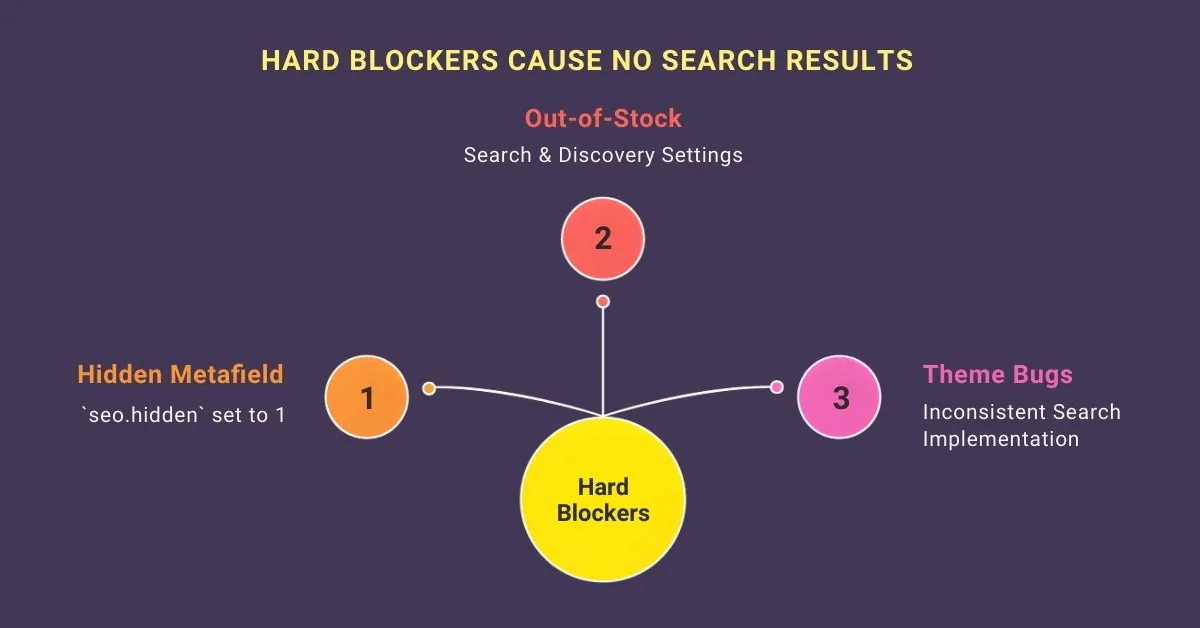
1) Check the seo.hidden Metafield (Most Common “Hidden From Search” Cause)
Shopify’s “Managing searchability” documentation calls out a specific cause of missing products:
Products might have the seo.hiddenmetafield set to 1. Changing it to 0 can restore search visibility.
This is not theoretical - Shopify Community threads show merchants fixing missing search results by updating seo.hidden to 0.
Fast checklist
- Open the product in Shopify Admin
- Check metafields for seo.hidden
If 1, set to 0, save and retest search.
2) If You Use Shopify Search & Discovery: Check Out-of-Stock Settings
Shopify’s documentation explicitly notes that Search & Discovery settings can hide out-of-stock products from results.
Fast checklist
- Open Search & Discovery
- Go to settings related to out-of-stock visibility
Ensure you haven’t unintentionally hidden items customers search.
3) Theme Search Implementation Bugs (Search Works Somewhere but Not Everywhere)
Some themes can have search form or search template issues that lead to inconsistent behavior - like working in one place but not another.
Shopify Community examples include themes where the search bar yields no results in certain contexts. Other theme issues can occur in multilingual stores if search routes are hardcoded instead of using Shopify’s routing variables.
Fast isolation method
Test on a duplicated theme (or a clean theme copy)
If search starts working, the issue is theme-level (template, routing, or JS)
Part B - “No Results” That Are Actually Data/Content Gaps
If products are not hidden, the next most common cause is mismatch between customer language and product content.
Shopify recommends analyzing query history specifically to identify content gaps and improve discovery.
1) Use Your “Searches With No Results” Report to Identify Patterns
Shopify’s Behavior Reports include “Top online store searches with no results,” which lists the terms customers searched that returned nothing.
Important nuance: Shopify Community discussions note that this report can sometimes be skewed (for example, by counting certain content searches), so interpret it carefully and validate against the storefront.
What to do
- Export the report
- Cluster terms into intent groups (product type, use-case, attributes)
Identify repeated language customers use that your catalog doesn’t include.
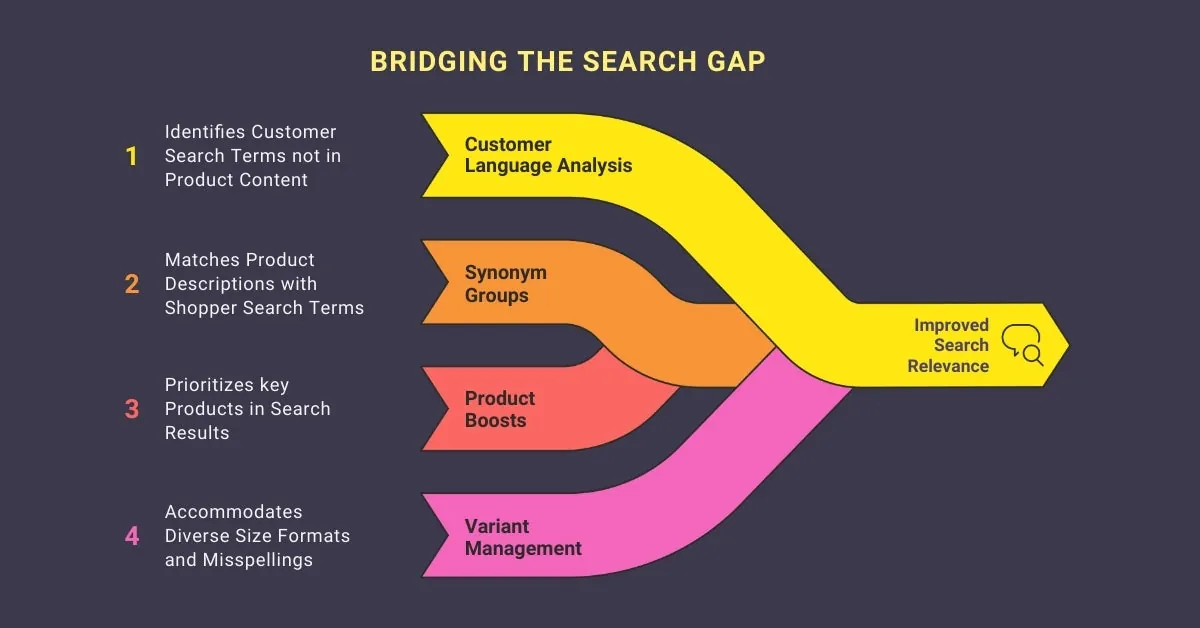
2) Fix the Language Gap With Synonyms + Variants
Shopify’s Search & Discovery app highlights two core tools to reduce failed searches:
- Synonym groups (so product descriptions match the terms shoppers use)
- Product boosts (to feature priority products in search results)
This is the practical bridge between “no results” and “relevance optimization.”
Fast win examples
- Add synonyms for shorthand/abbreviations customers use
- Add variants for size formats (e.g., “3x5”, “3 x 5”, “3 ft x 5 ft”)
- Add common misspellings for high-frequency queries
Part C - When “No Results” Is a Sign You Need a Structured Framework
If your store has:
- hundreds/thousands of products
- multiple categories
- many attributes (size/material/compatibility)
- or multiple brands/stores
then “adding a few synonyms” won’t scale.
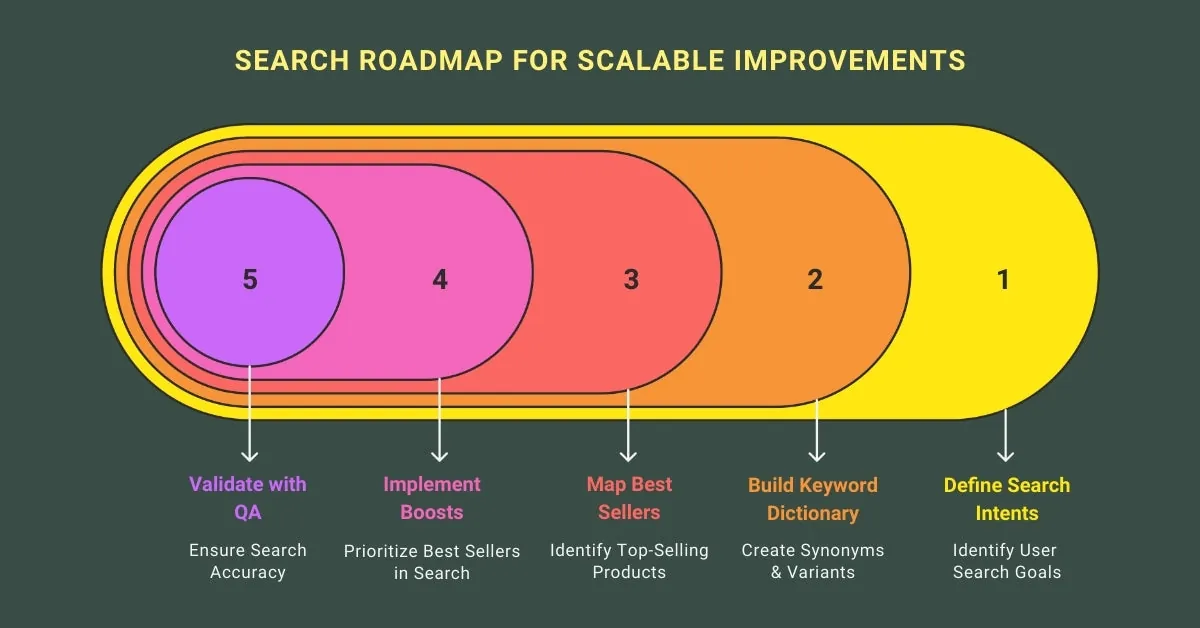
At that point, the correct solution is a repeatable search roadmap:
- Define search intents
- Build a keyword dictionary per intent (synonyms/variants/misspellings)
- Map best sellers per intent
- Implement boosts/merchandising rules
- Validate with must-win query QA
This is the system behind sustainable improvements not one-off tweaks.
FAQs
Want Webgarh to help you pick the right Shopify theme?
If you’re serious about building a high-performing store, we can evaluate Shopify themes against your product catalog, brand goals and growth roadmap and recommend the safest foundation for your store.
Let’s find the right Shopify theme
Need This Fixed Properly? Explore Our Services
If your store search is hurting conversions, the solution usually isn’t “one tweak” it’s the right storefront foundation + a growth system you can run consistently. At Webgarh, we help Shopify and Shopify Plus brands improve discovery, conversion and scalability through two proven service tracks:
- If your theme, search UX, filters, collections and performance are limiting results, explore our end-to-end storefront improvements and replatforming capabilities. Learn more:Storefront Development & Replatforming
- If you want a structured roadmap for improving traffic, conversion, retention and measurable growth our Build–Grow–Scale model organizes execution across the full ecommerce lifecycle. Learn more:Build–Grow–Scale Model
Fix Shopify Search Properly (The Shopify Plus Search Improvement Framework)
If your Shopify search is showing no results, missing products, or returning irrelevant items, quick fixes can help but the long-term solution is a structured search roadmap.
We’ve published a complete Shopify Plus search framework showing how to improve search results immediately and keep them stable over time:
- Pillar Guide: How to Fix Search on a Shopify Plus Store (Framework + Case Study)
- Post 2:How to Define Search Intents (Intent Map Template)
- Post 3: Build a Keyword Dictionary (Synonyms, Variants, Must-Win Queries)
- Post 4:Best Sellers and Merchandising Without Breaking Relevance
- Post 5:How to Choose the Right Shopify Search Solution (So Results Improve Immediately)
- Post 6:Implementation + Fast Stabilization + Must-Win QA
If you want help implementing this quickly, request a Search Diagnostic and we’ll recommend the fastest path based on your catalog size and current setup.
Why does Shopify search show no results even when products exist?
Common reasons include products hidden by seo.hidden, Search & Discovery settings (for example out-of-stock behavior), theme/search routing issues or a mismatch between customer terms and product content.
How do I find the keywords causing “no results” on Shopify?
Use Shopify’s “Top online store searches with no results” report (Behavior Reports) to identify the search terms customers used that returned nothing.
What is the fastest fix for “no results” searches?
First remove blockers (seo.hidden, Search & Discovery settings, theme issues), then patch the top failed queries using synonym groups and content/keyword alignment.
If you want this solved properly (and fast), you can request our Shopify Search Diagnostic. We’ll review your current search behavior, identify the root cause (configuration, theme/search template, app conflicts, or catalog/content gaps) and share a clear action plan to fix it along with a scalable roadmap if you have a large catalog or Shopify Plus requirements. To get started, fill out this short form and share a few examples of searches that are failing; our team will review the details and respond with the recommended next steps.